
In Seated With Love, you can adjust the width and height of a floor in the Floor Plan Editor to match the real-world dimensions of your venue. Setting accurate floor dimensions helps ensure that the digital floor plan reflects the true scale of the event space, making it easier to place tables, arrange seating charts, and maintain proper spacing for walkways and venue features.
Updating the floor size allows planners, venues, and event coordinators to design realistic event layouts that match the physical venue environment.
Steps to Change Floor Width and Height in Seated With Love
Follow these steps to update the dimensions of a floor in your event floor plan:
-
Open the Floor Plan Editor
Log in to your Seated With Love account and open the Floor Plan Editor for your event. -
Select the Floor You Want to Adjust
Navigate to the floor whose layout dimensions you want to modify. -
Open Floor Settings
Locate the floor settings panel or dimension controls associated with that floor.

4. Enter New Width and Height Values
Input the updated width and height measurements for the floor.
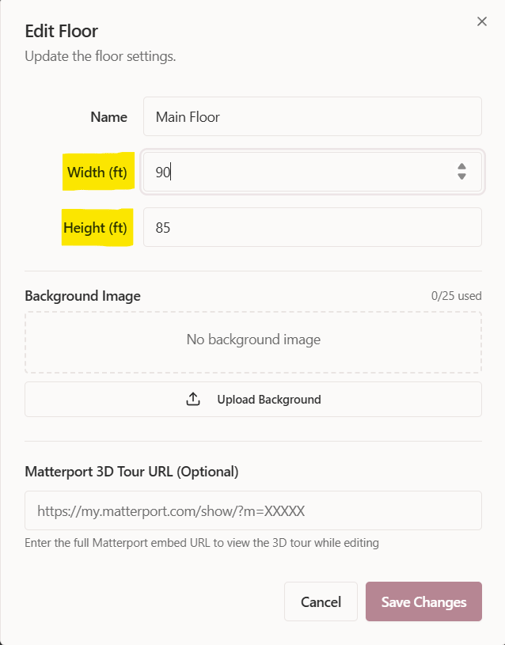
5. Match the Real Venue Proportions
Adjust the dimensions so they accurately represent the size and proportions of the real venue space.
6. Save the Floor Dimensions
Save your changes to apply the updated measurements.
What Happens After Updating Floor Dimensions?
Once the floor width and height are updated:
-
The floor plan canvas will automatically resize
-
Tables, objects, and layout elements will adjust within the updated space
-
Planners can maintain accurate spacing and layout proportions
-
The event seating chart and floor plan design will better reflect the real venue layout
Using accurate floor dimensions helps ensure that tables, seating areas, and walkways are properly planned before the event day.